Still sending customers to a tracking page outside their Shopify customer account?
Many Shopify stores today keep order tracking outside of the customer account. Customers often have to leave their account, jump to a separate tracking page, or search for the right entry point just to check shipping status.
This disconnected experience falls short of the clean, seamless experience customers expect from leading DTC brands.
Now, ParcelWILL (formerly ParcelPanel) takes tracking one step further.
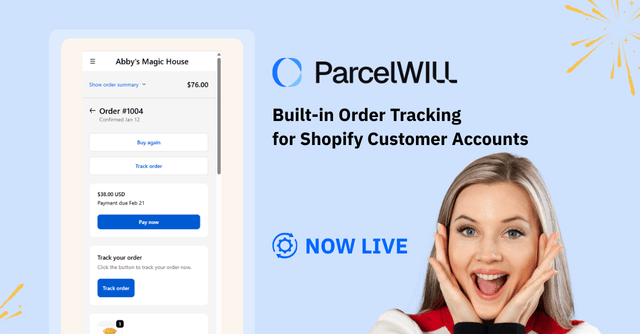
We’ve just launched Built-in Order Tracking for Shopify Customer Accounts, so customers can track orders inside their customer account, without leaving the account or searching through emails.
In this article, we’ll break down what’s new, how the widgets and tracking pages work, and how to choose the right setup for your store.
What’s new
✅ Built for Shopify customer accounts
Our order tracking page can be embedded directly into the Shopify customer account, right where customers already manage their orders.
✅ 3 Tracking Widgets (tracking entry points)
You can choose where customers enter tracking based on how they browse:
- Order actions
- Fulfillment status
- Standalone widget on the order status page
✅ 2 Order Tracking Page options (where tracking details show up)
We offer two flexible order tracking page options, based on how tracking details are presented:
- Order tracking page embedded in the customer account
- The default order tracking page (the branded tracing page we’ve previously offered)
✅ Out of the box / No code
All of these can be easily set up without code knowledge.
Why Putting Order Tracking Inside Customer Accounts Matters?
Shopify customer accounts are where your customers go after checkout to check on their orders.
So if tracking lives somewhere else, they have to leave the account, click around, and start over. That’s usually when you start seeing WISMO tickets.
Putting tracking inside customer accounts isn’t just a nicer experience. It improves three things you’ll notice day to day.
Customers get answers faster (and feel less unsure)
When a customer logs into their account, they’re checking one thing: where their order is.
If tracking is right there on the Orders list or inside the order details, they can get an update immediately—no extra steps, no jumping out of the account to find the “real” tracking page.
That usually means:
- They get reassurance sooner (and worry less)
- Fewer “wait, where do I click?” moments
- A clearer, more transparent delivery experience, especially for cross-border orders or longer shipping windows
💡Tip: Put tracking where customers already look, and a lot of follow-up questions never happen in the first place.
More self-serve tracking, fewer “Where’s my order?” tickets
Most WISMO tickets aren’t really about delays. They’re about not knowing.
If tracking takes too many clicks, or customers get pushed to another page or carrier website, they stop trying and just message you.
But when you make order tracking happen in Shopify customer accounts, it becomes a quick self-serve check instead of a support conversation. In practice, you’ll find out:
- More customers check updates on their own
- Fewer copy-paste tracking replies for your team
- Support stays calmer during peaks and promo seasons, because the basics don’t pile up
💡Tip: The easier it is to check tracking inside the account, the fewer “quick questions” end up in your inbox.
The experience feels truly “on-brand” after checkout
A branded tracking page can look great. But if customers have to leave their account to get there, it still feels like a separate step—almost like they’ve been handed off to a different system. This is especially true when the tracking page isn’t fully customized.
Built-in order tracking keeps everything in one place. It becomes part of customer accounts: clean, familiar, and consistent with the rest of the journey.
Over time, that adds up:
Customers stay in your brand experience even after they’ve paid (trust doesn’t get interrupted).
The flow feels closer to what top DTC stores do: account-native, smooth, and less likely to lose people mid-check.
💡Tip: When tracking lives inside the account, it stops being “one more page” and becomes part of your store.
3 Tracking Widgets: Choose Where Customers Enter Tracking
ParcelWILL now supports adding tracking components directly to Shopify customer accounts, so customers can track orders within their accounts.
Customer behavior inside customer accounts isn’t the same for every store. Some customers start from the orders list and look for the most recent order. Others go straight to an order details page to check fulfillment.
These three widgets let you place “Track order” where customers are most likely to click, so order tracking functions as a natural part of the account flow.
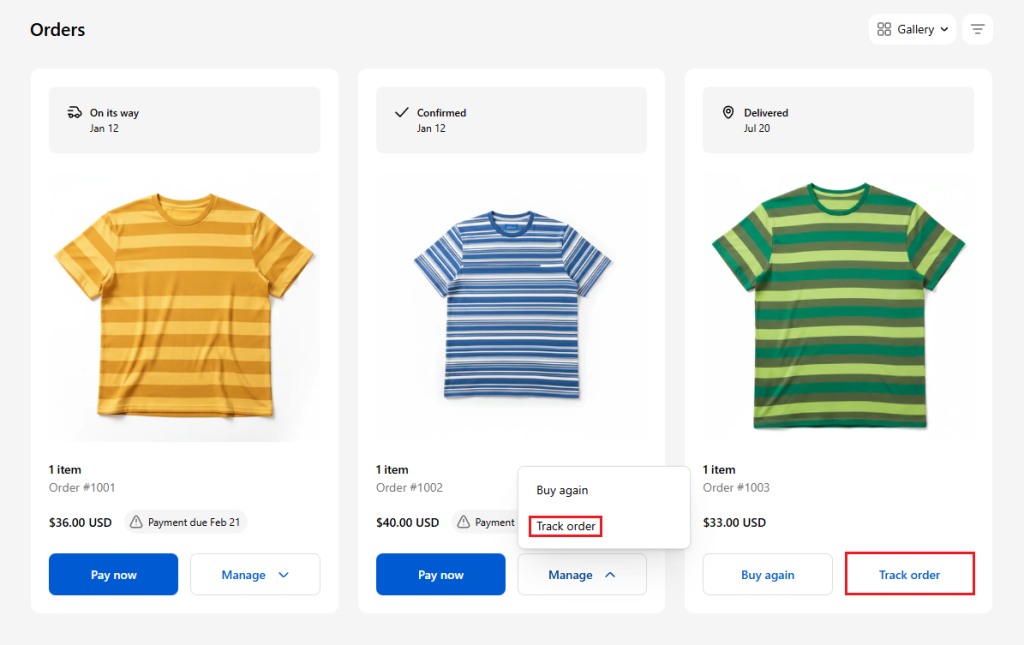
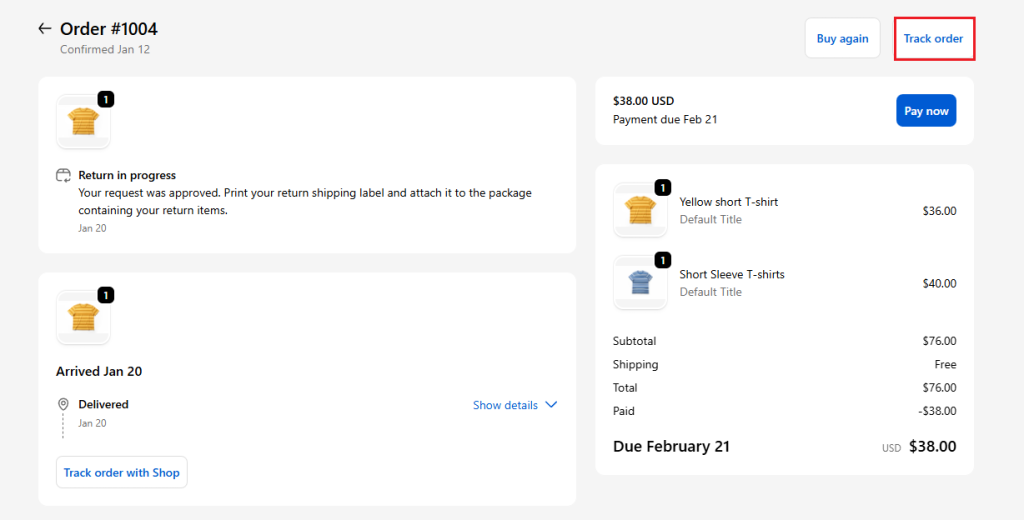
#1 Tracking Widget: Order Actions
When you enable this widget, the Track order button appears in the order action area on:
- the Orders page (order list)
- the Order status page (order details)
For many customers, the Orders list is the first stop after logging in. They scan, pick an order, and take action. Putting “Track order” in the action area makes the next step obvious; there’s no need to search and guess.
Best for: A strong default for most stores: clear placement, broad coverage, especially helpful for customers who return to their account to manage multiple orders.
#2 Tracking Widget: Fulfillment Status
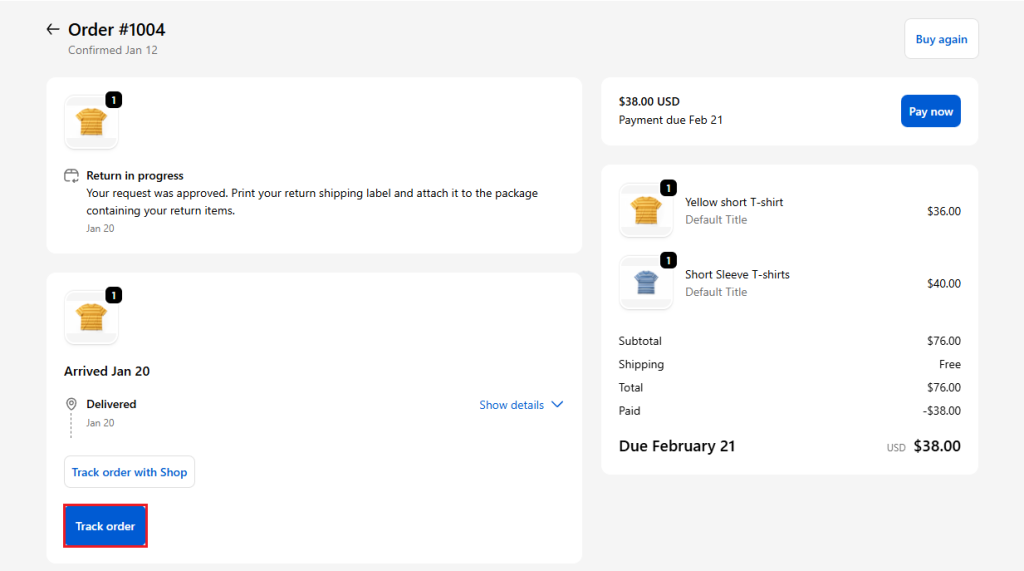
Once enabled, the Track order button appears in the Fulfillment status section on the order details page.
On the order details page, customers’ attention naturally goes to fulfillment and shipping status first. Placing tracking right next to that information matches how customers read the page: status → track → get more detail.
Best for: Stores where customers frequently open order details to check “has it shipped / where is it now,” and you want tracking to sit right beside that status.
Note (avoid duplicated entries):
Shopify may display a “Track order with Shop” tracking entry in this area by default. If you want a cleaner experience, you can disable that default entry in Shopify admin settings.
#3 Tracking Widget: Standalone Widget
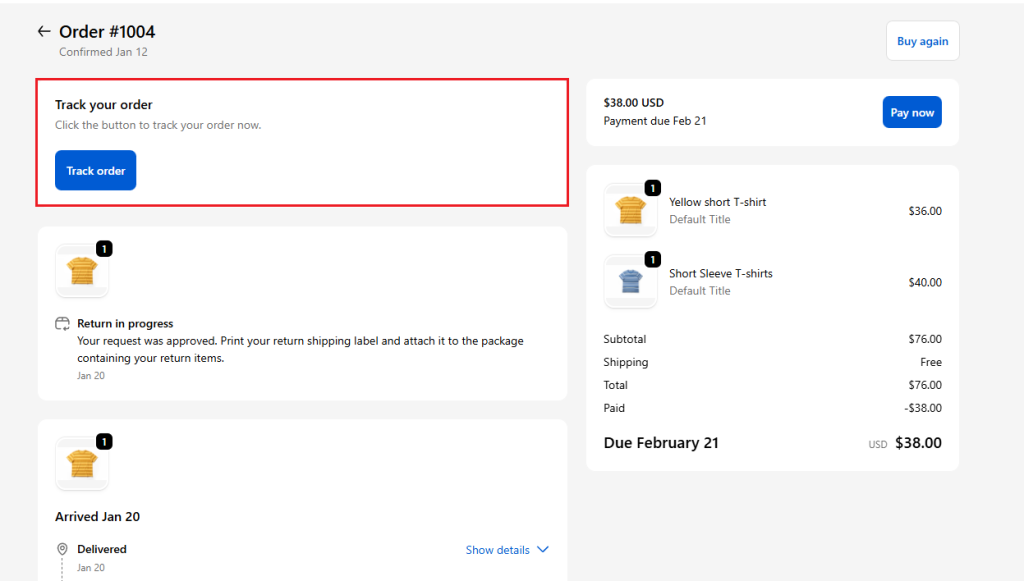
The standalone order tracking widget is on the order details page, and you can drag it to adjust its position.
Compared with a button, a standalone module makes tracking more like part of the page content itself. Customers don’t have to decide “where to click first”; tracking is presented more naturally within the order details layout.
Best for: Brands that care about customer account layout and presentation, and want tracking to show up as a clear, native experience with adjustable priority.
2 Order Tracking Pages: Embedded Tracking Page vs. Default Tracking Page
Tracking widgets determine where customers enter tracking. The tracking page option determines where tracking details appear after they click.
Different stores have different needs, so ParcelWILL gives you two ways to deliver the tracking details.
#1 Embedded Tracking Page (Inside Shopify Customer Accounts)
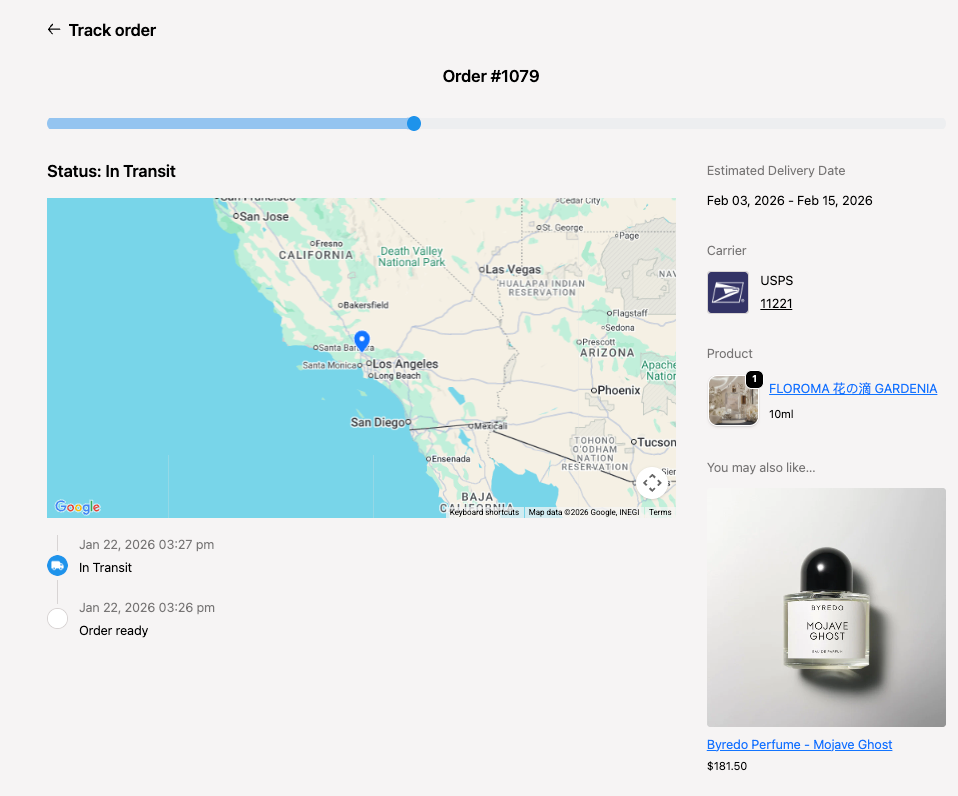
When customers click “Track order” in customer accounts, tracking details are shown as an in-account order tracking page: customers stay within accounts while viewing order updates.
With built-in tracking, it’s like the order and tracking experience are two parts of the same story. Customers can easily move from checking their order to tracking its shipping status, all within the same account view, with no interruptions.
Best for: You want an account-native flow end-to-end. Your tracking needs are relatively standard and don’t rely heavily on advanced default page features or deep customization.
Important to know:
Right now, Shopify has some limits on how much third-party developers can customize customer accounts. This means that while the embedded tracking page is seamless, it might not support every feature or customization you’d find on the default tracking page. So, it’s worth keeping in mind as you decide which setup works best for your store.
#2 Default Tracking Page (Embedded In Your Domain)
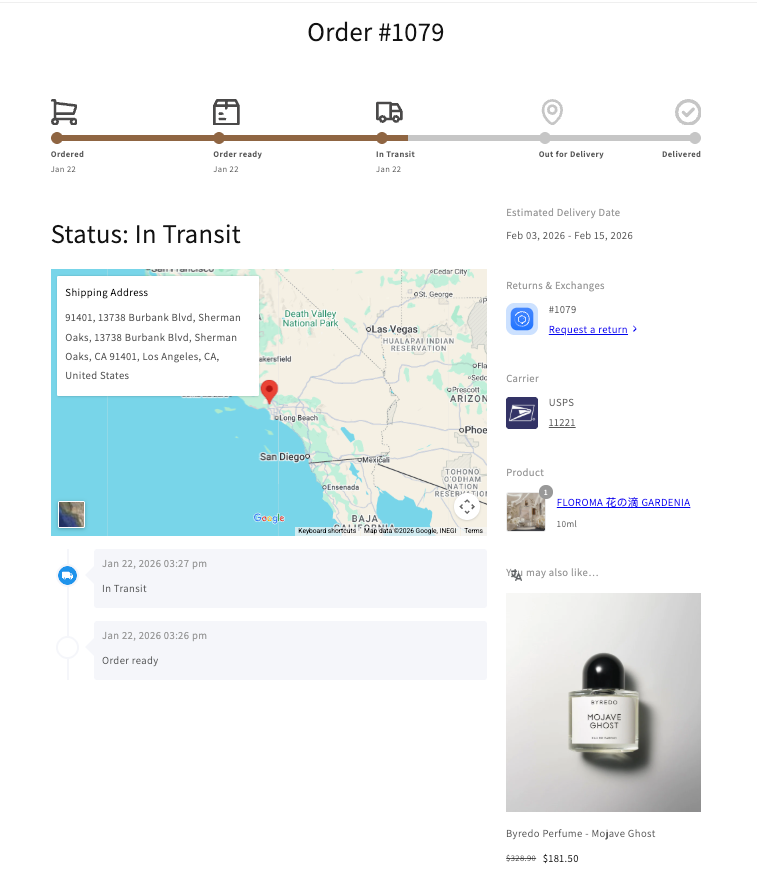
The default tracking page (branded tracking page) has more customization features, like complete custom styling, product recommendation with compared prices, and the post-purchase hub feature, etc.
If you’d rather keep your existing tracking page experience, you don’t need to rebuild anything. Just add the tracking entry points where customers are already familiar with them, and you’re good to go.
This way, you keep your brand experience seamless without extra work.
Best for:
- You already have a strong default tracking page and want to keep it unchanged
- You want full functionality first, and will evaluate embedded later
Embedded vs. Default Tracking Page (What’s Supported)
Here’s a quick side-by-side so readers can decide which experience fits their store best:
| Feature | Embedded tracking page (inside customer accounts) | Default tracking page (embedded on your domain) |
| Page styling (theme/look & feel) | Limited (can’t customize page style) | Customizable |
| Fonts / Typography | ❌ Not supported | Customizable |
| Top bar order lookup | Not available (Customers view tracking for the logged-in order only) | Available (order lookup widget supported) |
| Tracking details | ✅ Carrier, tracking number, last-mile carrier, detailed tracking events | ✅ Carrier, tracking number, last-mile carrier, detailed tracking events |
| Tracking progress bar | ✅ Real-time progress tracking, but icons and text can’t be added at each stage yet. | ✅ Icons and text can be added at each progress stage. |
| Map status | ✅ Map shown, but can’t display detailed shipping origin or current package location | ✅ Can show detailed shipping origin and/or current package location |
| Estimated Deliver Date (EDD) | ✅ Supported | ✅ Supported |
| Custom Shipment Status | ✅ Supported | ✅ Supported |
| Post-purchase hub | ❌ Not supported | ✅ Supported (e.g., shipping protection claim entry, returns & exchanges entry) |
| Multi-language | ✅ Supported | ✅ Supported |
| Product recommendations | ✅ Supported (with limitations) | ✅ Supported (includes compare-at price/strikethrough price) |
How to choose the best setup for your store (quick picks)
Most merchants don’t enable every option at once. A cleaner approach is:
(Start with one universal entry point; watch how customers actually use it; Then add a second entry point or adjust the tracking page option based on your audience’s habits.
Start with Tracking – Order Actions (for Customers Who Use the Orders List First)
If your customers often return to their account to manage multiple orders (high order frequency, strong repeat purchase behavior), they typically start from the Orders list. This widget fits that pattern well.
Add Tracking – Fulfillment Status (for Customers Who Check Order Details)
If customers tend to open a specific order and focus on “shipped yet / current status,” adding Fulfillment status keeps tracking aligned with how they read the page, especially useful for longer shipping cycles and frequent status checks.
Consider the Embedded Tracking Page (for A Seamless, Account-native Experience)
If your goal is to keep tracking details inside customer accounts for a more complete in-account flow, the embedded page is the right direction.
A more practical rollout is to get widgets running smoothly first, then decide whether embedded is the best fit, since embedded may not fully match the default tracking page in features and presentation due to Shopify’s current limitations.
Step-by-Step: Launch Customer Account Tracking in 3 Steps
The whole solution is out-of-the-box and requires no code.
You can think of the setup in two parts:
(1) Place Track order entry points in customer accounts, then (2) choose which kind of tracking page is shown.
Step 1: Add A Widget in ParcelWILL
Go to ParcelPanel admin → Settings → General → Built for customer accounts → Add widget.
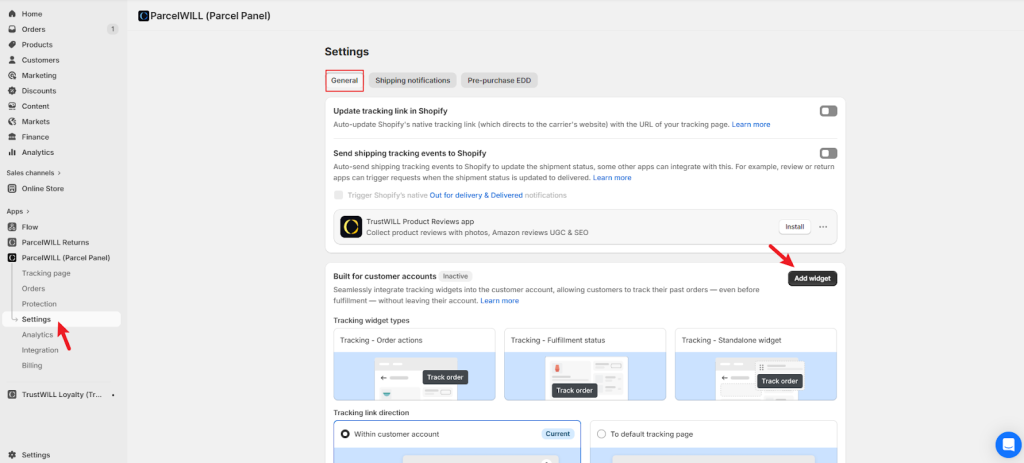
Step 2: Select One or More Widgets and Apply Them in Shopify Configurations
On the widget selection screen, choose one or more tracking widgets, and add them to the appropriate Shopify checkout configurations.
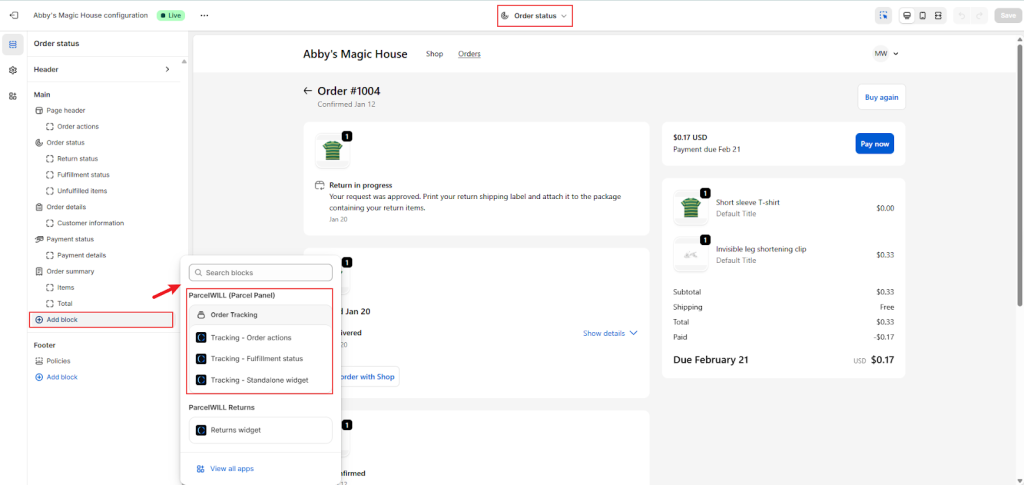
Step 3 (optional): Add the Embedded Tracking Page Block
By default, customers can continue to use the default tracking page for tracking details.
If you want the tracking details to appear inside customer accounts, add the app block named “Tracking page – Embedded.”
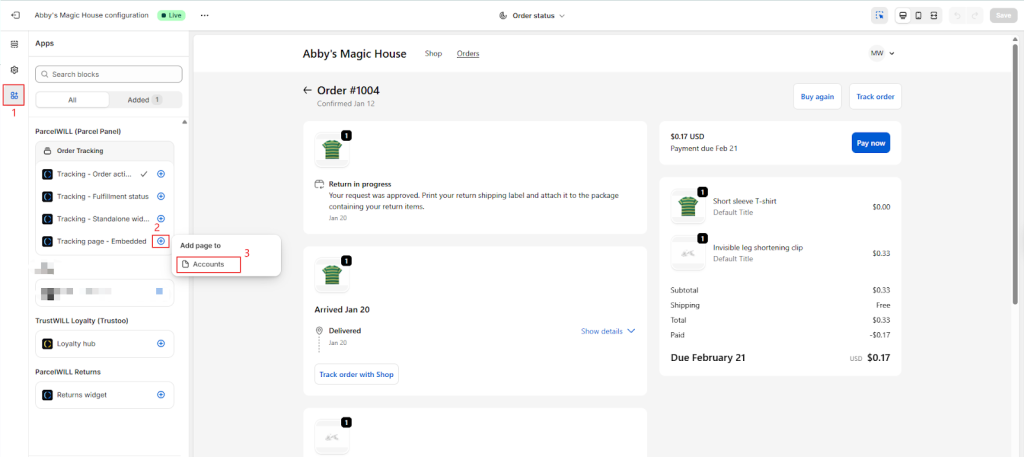
Full setup guide: View setup guide.
Conclusion
Want customers to track orders inside Shopify customer accounts and keep the post-purchase flow more connected?
With Built-in Order Tracking for Shopify Customer Accounts, you can offer a seamless, self-serve tracking experience that reduces WISMO tickets and boosts customer satisfaction.
Ready to get started? Install ParcelWILL now and bring tracking directly into your customer accounts.

#1 Shopify Tracking Solution for eCommerce
FAQs About Shopify Customer Account Order Tracking
Yes. Built-in Tracking is designed for Shopify customer accounts. You can add tracking widgets that place a “Track order” entry point directly inside the account experience.
Yes. You can choose one or more tracking widgets to match different store layouts and customer behavior paths (for example, covering both order list and order details).
It depends on where you want tracking details to appear:
1) Embedded tracking page: tracking details show inside customer accounts
2) Default tracking page: customers are redirected to your default tracking page for details
Because Shopify limits customization in customer accounts, embedded may not fully match the default tracking page in features and presentation. A practical approach is to start with widgets first, then decide whether embedded is the best fit for your needs.
No, your default tracking page still exists. Embedded is simply a different way to present tracking details. If you add the “Tracking page – Embedded” block, tracking details can appear inside customer accounts; if you don’t, customers continue using the default tracking page flow. You can adjust your setup based on your store’s needs and rollout plan.

Content Specialist
I’m passionate about creating SEO-friendly content that also resonates with readers. I take data and insights and turn them into actionable, practical ideas. My mission? Helping websites drive organic traffic and grow sustainably.